
The single biggest backup mistake SMBs make with OneDrive is thinking that file syncing is the same as having a real data backup. It’s an easy mistake to make. After all, your files are in the cloud, so they must be safe, right? Unfortunately, that’s not how it works. OneDrive is a fantastic tool for sharing files and working with your team, but it was never designed to be a disaster recovery plan. Relying on it as your only safety net is like thinking a spare tire is the same as a full car insurance policy.
One of the most common—and dangerous—questions we hear from business owners in Salinas and across Monterey County is, “Isn’t my data backed up if it’s in OneDrive?” What this actually means is your business is still vulnerable to cyberattacks, user errors, and cloud sync corruption—even if your files are in the cloud. True backup requires separate, immutable, and regularly tested copies.
Think of OneDrive sync like a magic carbon copy. If an employee accidentally deletes a critical folder, that deletion instantly copies to the cloud and then to everyone else's computer. The folder is just… gone. Everywhere. The same thing happens with ransomware. If a hacker encrypts your files, OneDrive will diligently sync those encrypted, useless versions across all your devices, overwriting your clean copies. Want to know how ransomware can bypass cloud sync? Read our guide on network security here.
Recent insights show that a shocking 74% of SMBs hit by ransomware had their data encrypted, meaning many believed they had backups that failed when it counted. File sync tools just don’t offer the key features of a real backup, like version control, air-gapped copies, or disaster recovery.
This visual breaks down the core difference between simple cloud sync and a proper backup strategy.
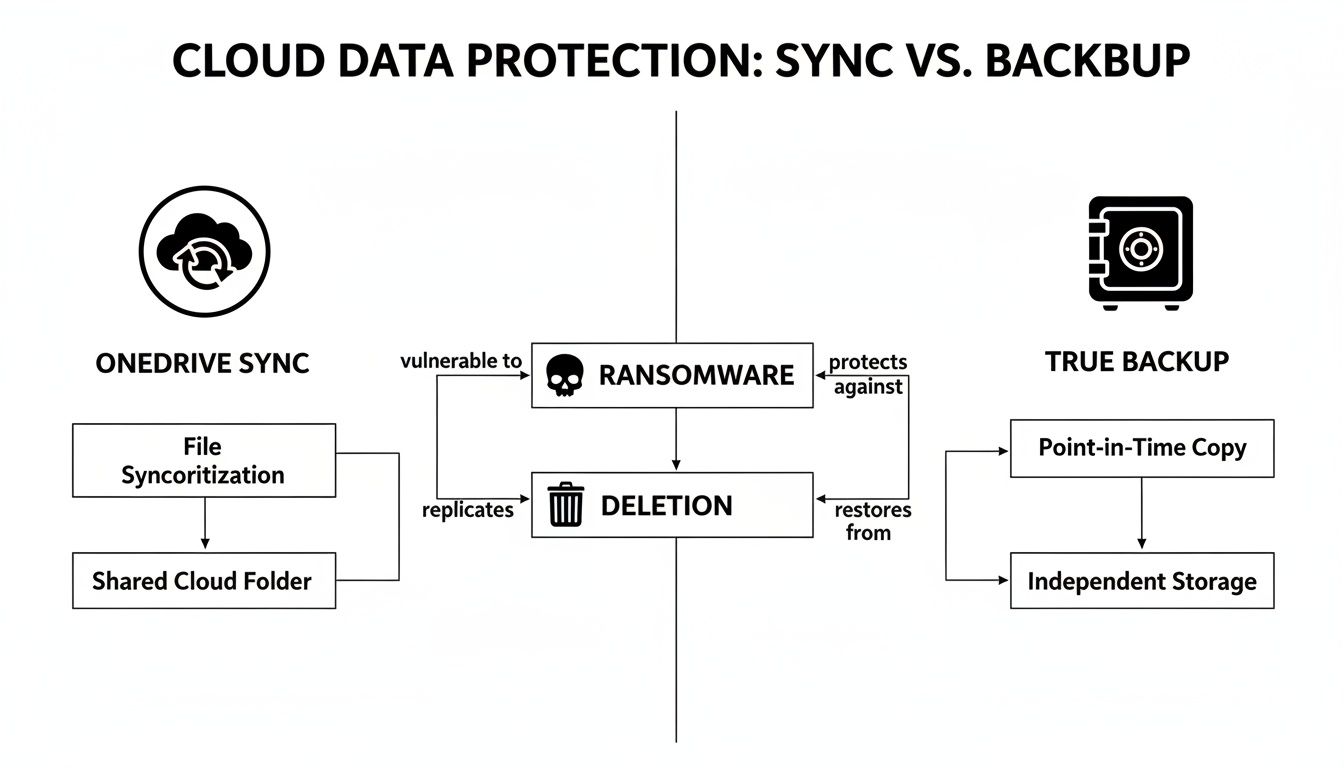
Here's the key takeaway: both systems can be hit by the same threats, but only a true backup gives you a way to recover. To really get a handle on this, it helps to understand OneDrive's role within the larger world of comprehensive Microsoft 365 services. Its job is collaboration, not disaster recovery. This is just one of several common mix-ups we see, and we've covered a few more in our guide on busting the biggest tech myths in small business.
The good news? Setting up a genuine backup system is straightforward and affordable. The first step is to audit your backup setup. Ask your provider: Can we recover data from last week if someone overwrites or deletes a file today? Do we have offsite and versioned copies? If the answer is “no” or “I don’t know”—you need managed backup.
Still unsure if your setup qualifies as real backup? We’ll walk you through a free 5-minute backup risk check. No jargon, just clarity.
Why File Synchronization Is Not Data Backup
To get to the bottom of the biggest backup mistake small businesses make with OneDrive, you first have to understand one critical fact: file synchronization and data backup are two completely different things. It’s an easy point of confusion, but the difference could mean everything for your business’s survival.
Think of OneDrive’s file sync like a set of perfectly mirrored walls in a room. If you hang a picture on one wall, it instantly appears on all the others. But if you accidentally knock a hole in one wall, that same hole instantly appears everywhere else.
Synchronization is built for convenience and collaboration, not for protection. Its job is to make sure the version of a file on your laptop in Seaside is identical to the one on your office computer in Salinas. This is fantastic for productivity, but it’s disastrous when something goes wrong.
How Sync Technology Spreads Disasters
Imagine an employee accidentally deletes a critical client proposal. OneDrive sees this action and faithfully syncs it, promptly removing that file from the cloud and every other connected device. The mistake gets replicated instantly and automatically. There's no safety net.
This gets even worse with a ransomware attack. If a hacker encrypts your files, OneDrive has no idea the changes are malicious. It just sees that the files have been modified and diligently syncs the now-useless, encrypted versions right over your clean copies in the cloud.
The hard truth is that while your files are in the cloud, they are not protected from events that happen on your local computer. A true backup requires separate, unchangeable copies of your data that you test regularly.
It’s a painful lesson many learn too late. Recent insights show that a staggering 74% of SMBs hit by ransomware had their data encrypted, meaning many thought they had backups that simply weren't there when it counted. This happens because file sync tools just don’t have the key features of a real backup, like historical versioning, air-gapped copies, or true disaster recovery options. The line between simple file sharing and robust data protection is a bright one, which is why we've put together a straightforward guide to understanding archiving and backup strategies for businesses like yours.
The Dangers Beyond Ransomware
While ransomware grabs all the headlines, a few other common, everyday scenarios show just how weak a sync-only strategy really is. These are risks that can be just as damaging.
- Accidental Deletion or Overwrites: A team member might accidentally delete a folder or save over an important spreadsheet with bad data. Sync will make sure that wrong version becomes the only version.
- Malicious Employee Actions: A disgruntled employee could intentionally delete entire directories of sensitive company data on their way out. Synchronization will execute those deletions across the entire system without a second thought.
- Silent Data Corruption: Sometimes files just go bad without any obvious signs. Sync technology will happily spread that corrupted file, making it the new standard across all your devices and potentially rendering it useless forever.
A genuine backup solution is designed to protect you from these exact situations. It creates historical, point-in-time copies of your data that are isolated from your live environment. If your "live" files are encrypted, deleted, or corrupted, you can simply reach back in time and restore a clean version from before the incident.
Not sure if what you have is a true backup or just a sync tool? Ask your IT provider a simple question: "If someone overwrites or deletes a file today, can we recover the version from last week?" If the answer is anything other than a confident "yes," you may not have a real backup at all.
The 93-Day Deletion Cliff Hiding in OneDrive
Beyond the immediate disaster of a bad sync, another danger is hiding in plain sight inside every OneDrive account: a strict, non-negotiable deletion deadline. Many business owners I talk to assume that when they delete a file, it just sits safely in the Recycle Bin forever, ready to be pulled out whenever they might need it.
That assumption is a huge mistake. In fact, it's a core part of the biggest backup mistake SMBs make with OneDrive.
The moment you delete a file, a countdown clock starts ticking. After exactly 93 days, Microsoft permanently erases that file. There’s no confirmation, no final warning—it’s just gone for good. There is no getting it back.
Think about that for a minute. For a Carmel-based hospitality business, that could mean guest records or event contracts from last season vanishing without a trace right before tax season. For an agricultural company in Salinas, crucial harvest data from a few months ago could be permanently wiped just when you need it for next year’s planning.
The False Sense of Security
This automated 93-day purge creates a dangerous false sense of security. Because the Recycle Bin is there, you feel protected from an accidental click. But that protection is temporary and completely unforgiving.
An employee might delete a project folder, not realizing its value until four months later when a client calls asking for a copy. By then, it's too late. The file is long gone.
This screenshot from Microsoft's own documentation lays it out clearly, showing the automated process that guarantees permanent data loss if you're not prepared.

The key takeaway is simple: these features are designed for recovering from a mistake you made this morning, not for the long-term data preservation a business needs for continuity or legal compliance. It’s a safety net with a massive hole in it.
Why a Real Backup Is Different
This is where a true, managed backup solution proves its worth. Unlike OneDrive's rigid 93-day limit, a proper backup service puts you in control.
A true backup solution isn’t just a trash can with a timer. It’s a historical archive of your business data, allowing you to restore files from last week, last month, or even several years ago, depending on your needs.
This level of control is essential for a few critical reasons:
- Business Continuity: You can recover from a data loss event that happened long ago without worrying if you’ve passed some hidden deadline.
- Legal & Compliance: Many industries require businesses to keep records for years, not a mere three months. A real backup ensures you can meet these obligations.
- Peace of Mind: You no longer have to worry about the "deletion cliff." Your data is protected according to policies you define.
Creating a strategy for how long to keep your data is a critical first step. To get started, you can review some common data retention policy examples to see what might work for your business. The goal is to move beyond OneDrive's default limitations and build a system that truly safeguards your company's most valuable asset.
What a Real Business Backup Strategy Includes
After seeing how easily simple file sync can fail, it's pretty clear that your business needs a real plan—not just a convenient tool. So, what does a robust, reliable backup strategy actually look like? It’s much simpler than you might think, and it's built on a time-tested industry principle.
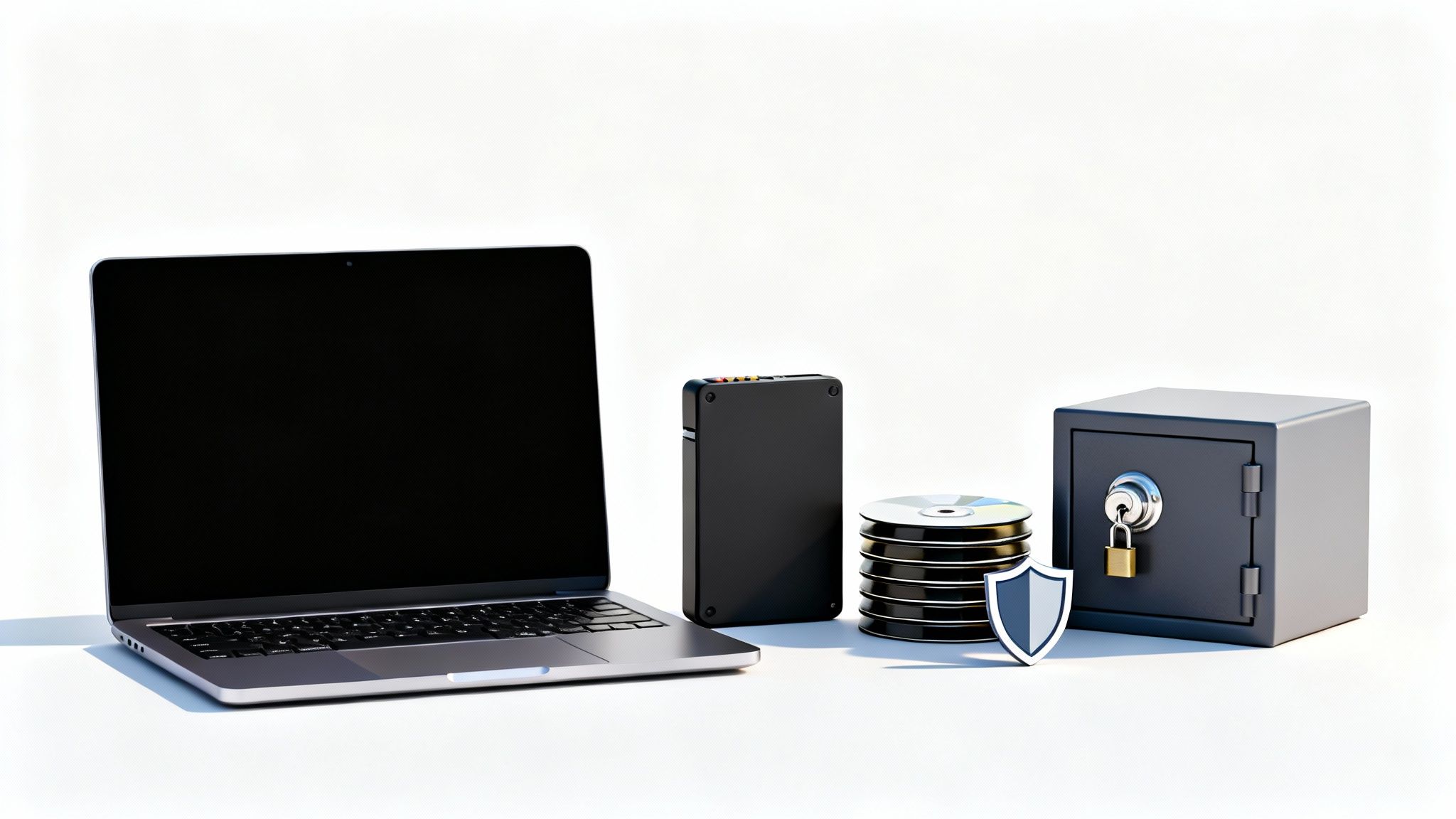
This shift in thinking away from simple sync is crucial. Relying on OneDrive alone means your business is still wide open to cyberattacks, user errors, and cloud sync corruption. True backup isn't about convenience; it's about survival, and that requires separate, unchangeable, and regularly tested copies of your data.
The Gold Standard: The 3-2-1 Backup Rule
The undisputed gold standard for data protection is the 3-2-1 Backup Rule. It’s a straightforward framework that ensures your data can survive almost any disaster, from a local hardware failure in your Monterey office to a major regional outage. Honestly, it’s the foundation of every professional backup strategy we implement for our clients.
Here’s the breakdown:
- Keep at least THREE copies of your data. This includes the original "live" data your team works with every day, plus two additional backup copies.
- Store your copies on TWO different types of media. You shouldn't keep all your backups on the same kind of device. For example, one copy might live on a local server, while another is in a secure cloud backup service.
- Keep ONE of those copies off-site. This is the killer step. An off-site copy is physically separate from your business, protecting your data from fires, floods, theft, or any other disaster that could wipe out your primary location.
This approach builds in multiple layers of redundancy. If one copy fails or gets compromised, you have others ready to go, ensuring your business can get back on its feet quickly.
Key Features of a True Backup Solution
Beyond the 3-2-1 rule, a genuine backup service offers specific features that OneDrive’s sync function completely lacks. These aren't just nice-to-haves; they are absolutely essential for disaster recovery and business continuity.
A true backup system is a time machine for your data. It’s not just about having a second copy; it’s about having the ability to restore your entire business operation to a specific, clean point in time before disaster struck.
Let’s look at the critical capabilities that define a real backup:
- Point-in-Time Recovery: This is the power to restore your files and systems to exactly how they were last Tuesday at 10:00 AM—before an employee accidentally deleted a critical folder or ransomware encrypted everything. It gives you historical snapshots, not just the latest (and possibly corrupted) version.
- Immutable Copies: A true backup creates unchangeable, or "immutable," copies of your data. This means that once a backup is made, it cannot be altered or encrypted by ransomware. This provides a clean, guaranteed recovery point that you can count on.
- Air-Gapped Backups: This concept means at least one copy of your data is physically or logically disconnected from your live network. It's the ultimate defense against network-wide cyberattacks that can spread in seconds.
- Automated and Tested Restores: Real backups run automatically on a schedule, without anyone having to remember to click a button. More importantly, a managed service includes regular testing to confirm the backups are actually working and can be restored successfully. A backup you've never tested is just a hope, not a plan.
For a deeper dive into establishing a truly resilient system, check out this comprehensive professional guide to backing up business data. It provides an excellent overview of the principles that protect companies from catastrophic data loss. And if you're exploring how this applies specifically to cloud environments, our detailed article on cloud backup for small business is a great next step.
How to Audit Your Backup Health in 5 Minutes
Now that we’ve separated real backup from wishful thinking, it’s time to figure out exactly where you stand. The good news? You don’t need to be an IT wizard to get a clear picture of your data’s safety.
You just need to know the right questions to ask.
This is the fastest way to uncover the single biggest backup mistake SMBs make with OneDrive—believing you're protected when you're actually dangerously exposed. Think of this as a quick, five-minute health check for your business’s most critical asset.
The Litmus Test for Your IT Provider
Grab your phone or pull up your email and ask your current IT provider (or whoever manages your tech) these simple, jargon-free questions. Their answers will tell you everything. The goal isn't to play "gotcha," it's to get the clarity you need to run your business without worrying about data loss.
Here’s what to ask:
-
If a critical folder gets deleted right now, can you restore the version from yesterday morning? What about from last week?
- This is a direct test for true versioning. A simple "yes" isn't good enough. You need to know if they can truly go back in time to pull a clean copy from before a disaster struck. A sync-only setup almost never can.
-
When was our last successful test restore, and how long did it take to complete?
- This question cuts right through the fluff. A backup that's never been tested is just a hope, not a strategy. An experienced IT partner should be testing your backups regularly and be able to tell you exactly when the last one was and how long you’d be down during a real recovery.
-
Are our backup copies stored completely separate from our main network and office?
- This checks for air-gapped or off-site storage. If a fire, flood, or aggressive ransomware attack hits your office in Monterey, an on-site backup is completely useless. A confident "yes" here means you have a real defense against a localized disaster.
The answers you get are a direct reflection of your business's ability to survive a crisis. Vague replies like, "We'll have to look into that," or a simple "no" are massive red flags. It's a clear signal that you don't have a real backup strategy—just a sync tool pretending to be one.
To help you get started, here's a quick checklist you can use to frame the conversation with your IT team. Ask them these simple questions to quickly determine if your business is truly protected or dangerously exposed.
Your 5-Minute Backup Health Checklist
| Question to Ask | A 'Good' Answer Means… | A 'Bad' Answer Means… |
|---|---|---|
| Can you restore a file to a specific date, like last Tuesday at 10 AM? | Your backups have versioning, allowing you to recover from ransomware or corruption by going back in time. | You likely only have a sync/mirror, which can't save you from data corruption or malicious deletion. |
| When was the last time a test restore was successfully completed? | Your backup system is being actively managed and verified. You can have confidence it will work when needed. | Your backup is an untested liability. It might not work in a real emergency, leaving you with nothing. |
| Are our backups stored in a location completely separate from our office? | You are protected from physical disasters like fire, flood, or theft that could destroy both your live data and your on-site copies. | A single on-site disaster could wipe out everything. Your business has no real disaster recovery plan. |
Clear, confident answers are what your business deserves. You should feel certain that your data—from agricultural records in Salinas to guest information in Carmel—is secure, recoverable, and regularly tested.
If this quick audit leaves you feeling even a little uncertain, it's time to take action.
Still unsure if your setup qualifies as real backup? We’ll walk you through a free 5-minute backup risk check. No jargon, just clarity.
Enterprise-Level Backup for Monterey County SMBs
Understanding the risks is one thing. Now, let’s talk about the solution.
The biggest backup mistake SMBs make with OneDrive isn't a technical glitch; it's a direct threat to your ability to stay in business. The only way to fix it is to move beyond a flimsy sync tool and adopt a real, managed backup strategy.
This is where we come in. Here at Adaptive Information Systems, we specialize in bringing proven, enterprise-grade IT security to local businesses in Salinas, Monterey, and across the county—all at a price that actually makes sense. We believe powerful protection shouldn’t be reserved for the big corporations.
Our entire approach is built from the ground up to solve every single issue we've discussed, turning those vulnerabilities into genuine strengths.
From Risky Sync to Resilient Backup
A managed backup service isn't just about installing a piece of software and hoping for the best. It’s a complete, hands-off process designed to give you peace of mind so you can focus on running your business, whether you're in agriculture, hospitality, or any other local industry.
We handle all the complexity behind the scenes. Our process ensures your business is protected with a multi-layered defense that OneDrive alone simply can’t offer.
Here’s what our managed backup solution actually delivers:
- Automated and Verified Backups: Your data gets backed up automatically on a consistent schedule. But more importantly, we regularly test these backups to make sure they're complete and recoverable. No surprises when you're in a real emergency.
- Historical Versioning: We create true point-in-time copies of your data. If a file gets corrupted or encrypted by ransomware, we can restore the clean version from an hour ago, yesterday, or last week—long before the disaster ever happened.
- Secure Off-Site Storage: Following the 3-2-1 rule, we store a secure, encrypted copy of your backups in a location completely separate from your office. This protects your data from local disasters like fire, flood, or theft.
This isn't just a safety net; it's a time machine for your business data. It provides the absolute certainty that you can recover from a data-loss event, no matter what caused it. A proven process is always better than a hopeful assumption.
Making the Right Choice for Your Business
We know every business is unique. A law firm in Carmel has different compliance needs than a farm in Salinas, but the need for reliable data is universal. Our goal is to provide a solution that fits your specific operational needs and budget.
When you partner with us, you get a dedicated team of local IT experts who are genuinely committed to your success. We proactively manage your defenses, monitor for threats, and ensure your data is always secure and available right when you need it most. To see how these principles apply to different businesses, explore our guide to backup solutions for small business.
Still unsure if your setup qualifies as real backup? We’ll walk you through a free 5-minute backup risk check. No jargon, just clarity.
Adaptive Information Systems
380 Main St, Salinas CA 93901 | 831-644-0300 | hello@adaptiveis.net
Common Questions We Hear About OneDrive Backups
Even after laying out a strategy, it’s natural to have a few questions rolling around in your head. Let's walk through some of the most common ones we get from business owners. We want to clear up any lingering confusion about keeping your company’s data truly safe.
Is OneDrive Version History the Same as a Backup?
OneDrive’s Version History is a fantastic feature, but it is not a backup. Think of it as a localized "undo" button. It’s perfect for fixing small mistakes, like when you accidentally delete a few key paragraphs from a proposal and need to roll it back to the version you had an hour ago.
But here’s the catch: it offers absolutely zero protection against a major disaster. If a hacker compromises your entire Microsoft account and deletes everything, your Version History disappears right along with your files. Ransomware can also encrypt your files in a way that makes every previous version just as useless. It’s a tool for minor “oops” moments, not for serious disaster recovery.
Can’t I Just Drag My OneDrive Files to an External Drive?
Manually copying your files to an external hard drive is definitely better than doing nothing at all, but it’s a risky and unreliable strategy for any serious business. This whole approach is completely dependent on human memory. It's shockingly easy to forget a backup, copy the wrong folders, or miss the new files your team created this week.
Relying on manual backups means your company’s protection is only as good as the last item on your busiest day's to-do list. An automated, managed backup service works quietly and consistently in the background, ensuring you are always protected without you ever having to think about it.
Besides, keeping that single external drive in your Salinas office means it’s vulnerable to the exact same local threats—fire, flood, or theft—as your computers. This method fails the most important test of a real backup strategy: having a secure, off-site copy that can survive anything that happens to your physical location. It’s a classic example of making the biggest backup mistake SMBs make with OneDrive and creating a dangerous false sense of security.
How Much Does a Real Backup Service Actually Cost?
That’s a fair question, and the answer is almost always the same: far, far less than the cost of losing all your data. For most local businesses in Monterey County, a professional, managed backup service is a small, predictable monthly operational expense.
Try to think of it less as a cost and more as an insurance policy for your company's most valuable asset. The real price of a data breach—including downtime, lost sales, damage to your reputation, and hefty recovery fees—can easily skyrocket into the tens of thousands of dollars, even for a small operation. When you compare it to that kind of catastrophic risk, a managed backup solution is one of the smartest, most cost-effective investments you can make in your company's future.
Still unsure if your setup qualifies as real backup? We’ll walk you through a free 5-minute backup risk check. No jargon, just clarity.
Adaptive Information Systems
380 Main St, Salinas CA 93901 | 831-644-0300 | hello@adaptiveis.net