If you run a business in Salinas, Monterey, or Aptos, you know that our local economy—from agriculture to hospitality—runs on data. But what happens if that data suddenly vanishes? A system crash, a cyberattack, or even a simple mistake can stop your operations cold. This can cost you time, money, and the trust of your customers. That’s why a solid data backup and recovery plan is not just a good idea for your Monterey Bay business; it’s essential for survival.
Many business owners think their current setup is good enough. However, hidden problems can leave you open to risk when you can least afford it. This guide gives you expert tips to secure data backup and recovery in Monterey, made for local businesses like yours. We’ll provide a clear, actionable plan to protect your most valuable asset. This will help you bounce back from any problem, quickly and completely.
This is about more than just having a backup; it's about having a recovery plan you can count on. You will learn how to use practical, top-level solutions without the top-level price tag. We will cover methods like the 3-2-1 backup rule, full-disk encryption, and creating special recovery drives. These strategies are key for figuring out if your in-house IT team could use some extra help from a local, expert partner. Think of this as your guide to building a strong business that can handle whatever comes its way.
1. Tip 1: Implement the 3-2-1 Backup Strategy with a Local Twist
The 3-2-1 backup strategy is a proven rule for protecting your data. It is the foundation for any strong data security plan. For a business in Carmel, Pacific Grove, or anywhere in Monterey Bay, this rule gives you a clear path to keep your data safe from loss.
The idea is simple: keep at least three copies of your data, store them on two different types of media, and keep one of those copies off-site. This layered approach ensures that a single problem, like a hard drive crash, a software bug, or a local disaster like a fire, won't wipe out your important business information.
How to Implement the 3-2-1 Strategy
For your Monterey-based business, this is how it works:
- Copy 1 (Primary Data): This is the data on your main devices, like your office computers and servers.
- Copy 2 (Local Backup): This copy is stored on a different device inside your office. A Network Attached Storage (NAS) device is a great choice. It allows for fast, on-site recovery if a computer fails. A financial firm in Monterey might use a local server for this.
- Copy 3 (Off-Site Backup): This very important copy is stored in a different physical location. An encrypted cloud backup is the best and most common method. It protects you from events that affect your entire office.
This infographic breaks down the parts of the 3-2-1 strategy.
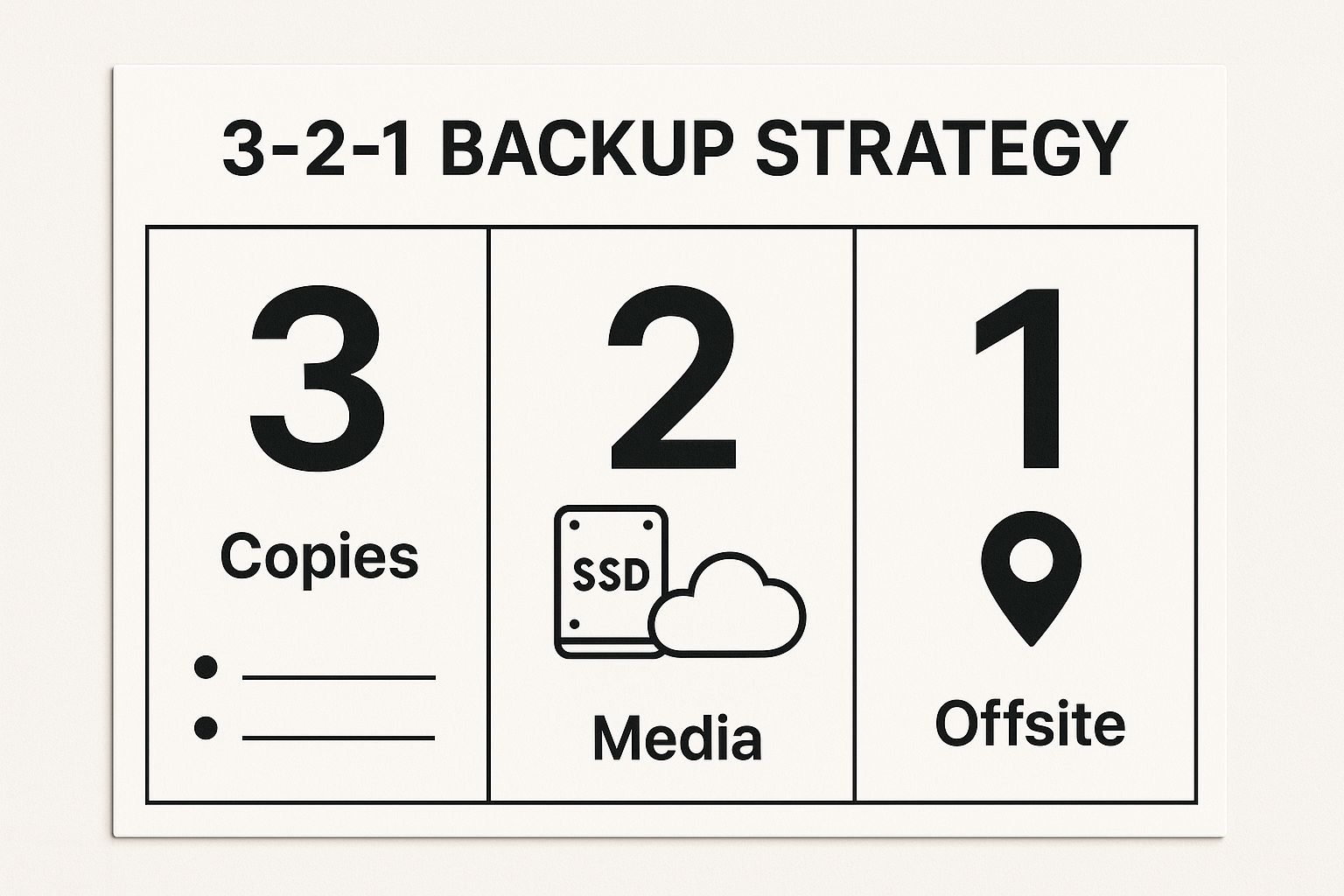
As you can see, this multi-layered approach creates backups of your backups, which is the key to good disaster recovery. By having your data stored in different ways and places, you lower your risk.
Actionable Tips for Local Businesses
To truly secure your data backup and recovery in Monterey, here are some expert tips:
- Test Your Restores: A backup is only good if it works. Plan monthly tests to restore files from each backup location to make sure the data is safe.
- Use Different Brands: Buy your storage devices (like external hard drives or NAS devices) from different companies. This helps you avoid problems if one brand has a defect.
- Enable Versioning: Set up your backup software to save multiple versions of your files. This protects you from ransomware and lets you restore files from before they were damaged.
To explore your options and find what works for you, check out different small business backup solutions. Setting this up correctly takes expertise. You can learn more about how our managed services automate and secure this entire process, giving you peace of mind.
2. Configure FileVault 2 Full Disk Encryption with Secure Key Management
Protecting the data on a lost or stolen device is just as important as protecting it from a hacker. For any business in Salinas or Monterey using Macs, FileVault 2 is your first line of defense. This built-in tool scrambles all the data on a computer's hard drive. It makes the data unreadable without the user's password or a special recovery key.
For businesses that handle sensitive client information, from law firms in Carmel to medical offices in Seaside, turning on FileVault 2 is a basic step. It helps you meet rules like HIPAA. It ensures that even if a computer falls into the wrong hands, your business and customer data stay safe.

The encryption process is tied to the user's login password. However, the real challenge is managing the recovery key. If a user forgets their password, this key is the only way to get the data back. A lost key means the data is lost forever. So, managing your keys securely is as important as the encryption itself.
How to Implement Secure Key Management
For a Monterey Bay business, a managed approach to FileVault 2 makes sure you never lose access to your own data:
- Individual User Key: The user's login password is the main key to unlock the computer.
- Recovery Key: A unique key is made during setup. This is your backup if a password is lost.
- Institutional Key (for businesses): Your IT provider can create a master key for your business. This allows you to unlock any company computer, which is vital when an employee leaves or a device needs to be managed.
This organized approach keeps your data safe from outsiders while making sure your business can always access it.
Actionable Tips for Local Businesses
To use this expert tip to secure your data backup and recovery in Monterey, follow these best practices:
- Store Your Keys Safely: Never let employees be the only ones with their recovery keys. Use a secure, central system to store all company and individual recovery keys.
- Encrypt Before You Back Up: Always turn on FileVault 2 before you create your first system backup. This makes sure the backup data is also encrypted and protected.
- Test Recovery Right Away: After you turn on FileVault, log out and test the recovery key to make sure it works. Don't wait for an emergency to find a typo.
- Document Everything: Create a clear policy for your IT staff or provider on how to use and recover keys.
Managing encrypted devices across a whole business requires careful planning. To see how we can help you set up a secure, managed encryption plan for all your company devices, check out our comprehensive security and compliance solutions.
3. Utilize APFS Snapshots for Point-in-Time Recovery
For businesses in Monterey using Macs, one of the most powerful and often missed data protection tools is built right into the system: APFS snapshots. This technology creates an instant, read-only copy of your entire file system at a specific moment. It’s like a digital photo of your hard drive, allowing you to turn back the clock on your system or recover files very quickly.
Unlike old-school backups that copy files one by one, snapshots are almost instant and save a lot of space. They only record the changes made since the last snapshot, not all the data. This makes them a great first defense against common problems like deleting a file by accident, a bad software update, or even a ransomware attack.

This powerful tool is what makes Time Machine backups work so well on modern Macs. For a design agency in Carmel or a developer in Salinas, this means you can recover specific files without waiting a long time for a full restore. This saves you time and keeps your team productive.
How to Implement APFS Snapshots
While Time Machine creates snapshots for you, your IT team can use them manually for even more protection. This is a key expert tip to secure data backup and recovery in Monterey, especially before you make big changes to a computer.
- Before a System Update: An IT pro can take a manual snapshot right before a major macOS update. If the update causes problems, they can roll the entire system back to how it was in minutes.
- Before Installing Software: A marketing firm in Pacific Grove about to install new software can create a snapshot. If the new program causes issues, going back is easy.
- Protecting Project States: A video editor can take a snapshot before making big changes to a large project, creating a safe recovery point.
Using snapshots this way gives you a safety net. It works with, but does not replace, a full 3-2-1 backup plan.
Actionable Tips for Local Businesses
To add APFS snapshots to your data protection plan, try these expert tips:
- Create Manual Snapshots: Use a simple command in the Terminal app (
tmutil localsnapshot) to create a snapshot before any big system change. - Monitor Snapshot Storage: Snapshots use disk space. Check how much space they are using from time to time to make sure they don't fill up your drive.
- Understand How They Work: Time Machine automatically deletes older snapshots to make space. Be aware of this and don't rely on snapshots for long-term storage.
Using APFS snapshots is a smart technique that can boost your internal IT team’s abilities. For businesses that need help with advanced strategies like this, our co-managed IT services can provide the expert support your team needs to protect your important data.
4. Implement Cloud Storage with Zero-Knowledge Encryption
Cloud storage is very convenient for off-site backups, but it brings up a big question: who can see your data? Zero-knowledge encryption answers this question by making sure that even your cloud provider cannot see or unlock your files. For a business in Salinas or Seaside, this is the best way to protect sensitive information.
This method means your data is scrambled on your device before it is sent to the cloud. You, and only you, have the key. This ensures that even if your cloud provider is hacked or forced to hand over data, your files will be useless to anyone without your unique key.
How to Implement Zero-Knowledge Encryption
For a Monterey-area business that handles private information, the process is simple but requires care:
- Primary Data: Your original files, like client records or financial reports, are on your local computers.
- Encryption: Before backing up, special software on your computer scrambles every file using a password or key that you create.
- Cloud Upload: The already-scrambled data is then sent and stored in the cloud. The provider only ever gets the encrypted version.
This method is vital for industries with strict rules. For example, a law firm in Carmel can use this to protect private client information, while a healthcare provider in Monterey can keep patient records safe and meet HIPAA rules. The main point is that you keep total control over your data's privacy.
Actionable Tips for Local Businesses
To properly secure your data backup and recovery in Monterey with this advanced method, follow these expert tips:
- Protect Your Key: Use a trusted password manager (like Bitwarden or 1Password) to safely store your master encryption password. If you lose this key, your data is gone for good.
- Set Up Recovery Methods: Before you upload important data, set up any recovery options your provider offers, like a secure recovery key.
- Test Your Restores: Regularly test restoring your files from different devices. This makes sure your backups are not only safe but also work when you need them.
- Verify Certifications: Choose a provider that gets regular security check-ups from outside experts (like a SOC 2 audit). This proves their security is as good as they claim.
A zero-knowledge system gives you the easy access of the cloud with the security of a private vault. To learn how this fits into a bigger plan, you can find more information about cloud backup solutions for small businesses. Managing these keys and processes correctly is key to making sure your data is both secure and recoverable.
5. Create Bootable Recovery Drives with Multiple macOS Versions
A normal backup is great, but it can't help if you can't even start your computer. This is where bootable recovery drives become a key part of your defense plan. This technique gives you a powerful tool for disaster recovery, even when a computer won't turn on.
The idea is to create an external USB drive that has a full, installable version of macOS on it. This drive lets you start up a Mac without using its internal hard drive. It gives you access to recovery tools like Disk Utility, Terminal, and the macOS installer. For a Salinas-based design agency or a law firm in Pacific Grove, this means you can fix a broken disk, reinstall the operating system, or get files back without needing a working main drive.
How to Implement Bootable Recovery Drives
Creating these drives is a technical process, but it provides a priceless safety net for your Mac-based business:
- Primary Drive (Failed): Your Mac's internal drive won't start because it's broken, has been hit by ransomware, or has a hardware issue.
- Bootable Recovery Drive: You plug in a special USB drive, hold the Option key when you start the Mac, and choose the external drive to boot from.
- Recovery Environment: The Mac starts up into a recovery mode. This gives you the tools to fix the internal drive, restore from a Time Machine backup, or do a clean install of the OS.
Having drives with different macOS versions is especially helpful for businesses that manage many different Mac models. This makes sure you always have the right tool for the job.
Actionable Tips for Local Businesses
To effectively secure your data backup and recovery in Monterey with this method, follow these expert tips:
- Use Quality Hardware: Buy high-speed USB 3.0 (or newer) drives. Faster drives will make booting and recovering much quicker.
- Partition for Multiple Versions: You can divide a single large drive to hold several different macOS versions (like Monterey, Ventura, and Sonoma). This makes it a flexible tool for all your Macs.
- Include Other Tools: Add other helpful recovery apps like DiskWarrior or Drive Genius to your bootable drive to give you more repair options.
- Label and Test Regularly: Clearly label each drive with the macOS versions it has and when it was made. Test it on a computer every month to make sure it works when you need it most.
6. Deploy Network Attached Storage (NAS) with RAID Configuration
A Network Attached Storage (NAS) device is a central file storage server. It lets many users and computers on a network access data. For businesses in Salinas or Seaside, a good NAS provides automatic backup storage with an important layer of hardware protection called RAID. This makes it a key part of any local data protection plan.
The main idea is to store all your backups on one reliable device on your local network. This setup gives you fast access to your data for both backing up and recovering. A RAID (Redundant Array of Independent Disks) setup combines multiple hard drives into one. This protects you if one of the drives fails, ensuring your backup data stays safe even if a part breaks.
How to Implement a NAS with RAID
For a Monterey-area business, setting up a NAS is a big step toward better data security. A common setup looks like this:
- Centralized Backup Target: All computers on your network are set up to back up to the NAS. Macs can use Time Machine for easy, automatic backups.
- RAID for Redundancy: The hard drives inside the NAS are set up in a RAID system. For example, in a four-drive NAS with RAID 5, data is spread across all the drives. If one drive fails, the system keeps working. The data can be rebuilt once you put in a new drive.
- Multi-User Access: A creative agency in Carmel could use a NAS to store large video files. This would let multiple editors access and back up their work to one secure place without slowing down their computers.
By combining central storage with hardware protection, a NAS with RAID gives you a professional-level local backup solution that is great for small and mid-sized businesses.
Actionable Tips for Local Businesses
To get the most out of your NAS for data backup and recovery in Monterey, follow these expert tips:
- Choose RAID 5 or 6: These setups offer a good balance of storage space and data protection. RAID 6 is even safer because it can handle two drives failing at the same time.
- Use Enterprise-Grade Drives: Buy hard drives made for 24/7 use in a NAS. Regular computer hard drives aren't built for this and fail more often.
- Use a UPS for Power Protection: Connect your NAS to an Uninterruptible Power Supply (UPS). This prevents data damage from sudden power outages by letting the device shut down safely.
- Set Up System Alerts: Set up the NAS to send you email or text alerts for important events, like drive failures, high temperatures, or backup errors. This lets you take action right away.
A NAS is a key part of a good security plan. It serves as the "2" in the 3-2-1 strategy. You can discover more backup solutions for small business to see how a NAS fits into a bigger, multi-layered data protection plan.
7. Establish Automated Backup Monitoring and Alerting Systems
A backup that fails without you knowing is no backup at all. Just setting up a backup system and hoping it works is a big risk for any business. Automated monitoring is the key to constantly checking that your backups are working, that the data is good, and that your storage systems are healthy.
This approach helps you be proactive instead of reactive. Instead of finding out a backup failed weeks ago when you desperately need to restore data, an automated system tells you right when a problem happens. For a busy hotel in Monterey or an agricultural company in Salinas, this instant alert system stops small problems from becoming major disasters.
How to Implement Automated Monitoring and Alerting
Setting up this system means using software to watch your backup processes and send you notifications about how they are doing. This makes sure you always know your data is protected.
- Completion Verification: The system automatically checks if each backup job finished without any errors.
- Integrity Checking: It sometimes tests backed-up files to make sure they are not damaged and can be restored.
- Resource Monitoring: It keeps track of storage space, telling you when you're running low. It also monitors the health of your backup hardware.
- Multi-Channel Alerts: When a problem is found, like a missed backup or a major failure, the system sends instant alerts through email, text message, or a team messaging app like Slack.
A local financial firm in Carmel might use a managed service provider that uses a tool to monitor client backups. This ensures rules are followed and data is always safe. Similarly, a small business could set up the built-in alert features of a service like Backblaze to send failure notices right to their IT manager.
Actionable Tips for Local Businesses
To set up good monitoring and alerting for your data backup and recovery in Monterey, follow these expert tips:
- Set Up Multiple Alert Channels: Don't just use email, which can be easy to miss. Set up alerts to be sent by text and a team chat platform to make sure important messages are seen right away.
- Confirm Success, Don't Just Report Failure: Set up your system to send a daily or weekly message confirming that all backups were successful. This gives you peace of mind and makes a missing report an immediate red flag.
- Create Escalation Procedures: Make a clear plan for who gets notified and what to do when a critical backup fails. This ensures a quick and organized response.
- Regularly Test Your Monitoring System: Once a quarter, cause a backup to fail on purpose to check that your alert system works as it should. A monitoring system that doesn't alert you is as bad as having no monitoring at all.
Automating your backup monitoring is a must for modern data protection. You can learn how our managed IT services build these proactive monitoring systems right into your backup and recovery plan, making sure your data is always protected.
8. Implement Regular Disaster Recovery Testing and Documentation
A backup plan you haven't tested is just a guess, not a real solution. For any business in the Monterey Bay area, from Aptos to Salinas, just having backups isn't enough; you must prove they work when you need them. This is where regular disaster recovery (DR) testing and documentation are so important.
The main idea is to practice for a disaster to make sure your recovery plan works well and is complete. This process finds weak spots in your plan, from bad data to slow restore times, before a real crisis hits. A documented plan is like a step-by-step guide that lets your team act quickly to get your business running again.
How to Implement DR Testing and Documentation
For a Monterey-based business, a planned approach to testing is key:
- Scheduled Drills: Just like banks in Carmel run regular drills, your business should plan regular recovery tests. These can be as simple as restoring a few files or as big as simulating a full server recovery.
- Performance Benchmarking: During tests, measure important things like how long it took to get back up and running (Recovery Time Objective) and how much data was lost (Recovery Point Objective). This information is key to improving your plan.
- Comprehensive Documentation: Create a detailed DR guide. This document should list every step, contact person, and password needed to perform a recovery. This makes sure anyone on your team can manage the process.
To make sure your recovery plan is solid, you should learn about the importance of regular backup and continuity drills. These practices turn a plan on paper into a proven, ready-to-go strategy.
Actionable Tips for Local Businesses
To use this expert tip to secure your data backup and recovery in Monterey, follow these steps:
- Start Small: Begin with data that isn't critical. This lets your team learn the process without risking important business functions.
- Test on Different Hardware: A real disaster might mean you have to restore your data to new computers. Practice this by testing recovery on different hardware to find any issues ahead of time.
- Document Everything: Write down the exact steps you took, how long each step took, and any problems you found during the test. This creates a valuable record for making things better in the future.
- Include End-to-End Processes: A successful test is more than just restoring data. It includes checking network connections, making sure apps work, and that users can access the restored systems.
By making your testing official, you build a strong foundation for your business to keep going. You can learn more about how a complete data backup and disaster recovery plan includes these important testing steps.
8 Key Expert Tips for Data Backup & Recovery in Monterey
| Item | Implementation Complexity 🔄 | Resource Requirements ⚡ | Expected Outcomes 📊 | Ideal Use Cases 💡 | Key Advantages ⭐ |
|---|---|---|---|---|---|
| Implement the 3-2-1 Backup Strategy with Time Machine | Moderate to High: multi-media setup, configuration | High: multiple storage devices, bandwidth | Maximal data protection, local recovery speed, ransomware defense | Enterprises, creative agencies, financial firms needing robust disaster recovery | Redundancy for multiple failure points, automated, scalable |
| Configure FileVault 2 Full Disk Encryption with Key Mgmt | Moderate: encryption setup, key management | Low to Moderate: hardware usually sufficient | Full disk encryption, physical theft protection, compliance-ready | Healthcare, legal, educational institutions requiring data protection | Seamless macOS integration, no performance impact, secure |
| Utilize APFS Snapshots for Point-in-Time Recovery | Low to Moderate: command-line and policy understanding | Low: uses existing disk space efficiently | Instant rollback, minimal performance impact | Developers, sysadmins needing rapid pre-change snapshots | Near-instant recovery, granular file restoration |
| Implement Cloud Storage with Zero-Knowledge Encryption | Moderate: client-side encryption setup, key mgmt | Moderate to High: bandwidth, encrypted storage | Complete privacy, offsite backup, compliance | Law firms, healthcare, journalists needing secure offsite storage | Full user control of keys, strong breach protection |
| Create Bootable Recovery Drives with Multiple macOS Versions | Moderate: technical knowledge for setup and updates | Moderate to High: large storage for installers | Full system recovery, supports multiple OS versions | IT departments, repair shops, professionals needing flexible recovery | System independent, multi-version support, portable |
| Deploy Network Attached Storage with RAID Configuration | Moderate to High: infrastructure and RAID setup | High: NAS hardware, multi-drive setup | Centralized, redundant backups, multi-user access | Small businesses, agencies, schools requiring reliable LAN backup | Hardware redundancy, expandable, Time Machine compatible |
| Establish Automated Backup Monitoring and Alerting Systems | Moderate: monitoring tools integration and tuning | Low to Moderate: monitoring software, alerting | Early failure detection, audit trails, proactive maintenance | MSPs, enterprises, SMBs needing guarantee of backup health | Reduced downtime, preventive alerts, compliance support |
| Implement Regular Disaster Recovery Testing and Documentation | Moderate to High: planning, execution, documentation | Moderate: time, human resources | Validated recovery readiness, process optimization | Financial, healthcare, education sectors with compliance requirements | Confidence in recovery, compliance, staff training |
Is Co-Managed IT the Right Next Step for Your Aptos Business?
Dealing with data security can feel like a full-time job, especially when you need to focus on running your business. In this guide, we've shared eight expert tips to secure data backup and recovery in Monterey. We’ve covered everything from basic strategies like the 3-2-1 rule to advanced methods like APFS snapshots and automated monitoring. Each tip is a vital layer in a strong defense plan. Following them isn't just about protecting files; it’s about protecting your business's future. It ensures that a hardware failure in Salinas, a cyberattack in Carmel, or a simple mistake in Pacific Grove doesn’t stop your business.
The most important thing to remember is that you need a proactive, multi-layered plan in today's digital world. Relying on a single backup method is not enough. Real strength comes from combining local backups, encrypted cloud storage, and tested recovery plans. When you master these, you can get back to business quickly, keep your customers' trust, and meet your legal duties. The goal is to turn your data backup plan from something you only think about when there's a problem into a business asset that supports your growth.
Bridging the Gap: How Co-Managed IT Enhances Your Internal Team
For many Aptos business owners, the hardest part is putting the plan into action. You may have an IT person or a small team, but can they handle the special, time-consuming needs of modern data protection? This is where a co-managed IT partnership can really help. It's not about replacing your team; it's about making them stronger.
Think of it this way: your in-house IT staff know your daily operations and user needs best. They are great at frontline support and working on your business-specific projects. A co-managed partner like Adaptive Information Systems works with them, bringing top-level tools, 24/7 monitoring, and deep knowledge in cybersecurity and disaster recovery. We handle the complex, behind-the-scenes work, like managing encrypted offsite backups, doing regular recovery drills, and keeping your systems updated and secure. This frees your team from constantly putting out fires and doing routine tasks, so they can focus on projects that move your business forward. It's a flexible model designed to provide enterprise-level IT at an affordable price—our mission for local small and mid-sized businesses across Monterey County.
Quick Assessment: Does Co-Managed IT Fit Your Goals?
Are you wondering if this team approach is right for your business? Ask yourself these questions:
- Growth: Is your business planning to grow soon? Our solutions can grow with you, so you don't need to hire more full-time IT staff to support new locations or employees.
- Budget: Do you need affordable access to professional security tools and experts? Our model turns big, one-time costs into a stable, predictable monthly expense.
- Complexity: Are your data security and compliance needs getting more complicated? We bring special knowledge in areas like HIPAA or CMMC to help your team and fill any gaps.
- Focus: Do you want your IT team to focus more on big-picture projects than on daily maintenance and emergencies? We take care of the background work so they can create value for your business.
By partnering with a local expert, you get a powerful ally who is dedicated to your success. You build a truly strong business, knowing that your most valuable asset—your data—is protected by a team of specialists who understand the unique needs of the Monterey Bay area.
Don't let data risk be the weak spot in your business strategy. If you're ready to use these expert tips to secure data backup and recovery in Monterey with a trusted local partner, connect with Adaptive Information Systems. We specialize in creating custom, co-managed IT solutions that empower your internal team and protect your operations. Visit us at Adaptive Information Systems to schedule a consultation and build a more secure future for your business.
Adaptive Information Systems
380 Main St, Salinas CA 93901 | 831-644-0300 | hello@adaptiveis.net